Server-Side Tracking: Why It Matters and How to Set It Up
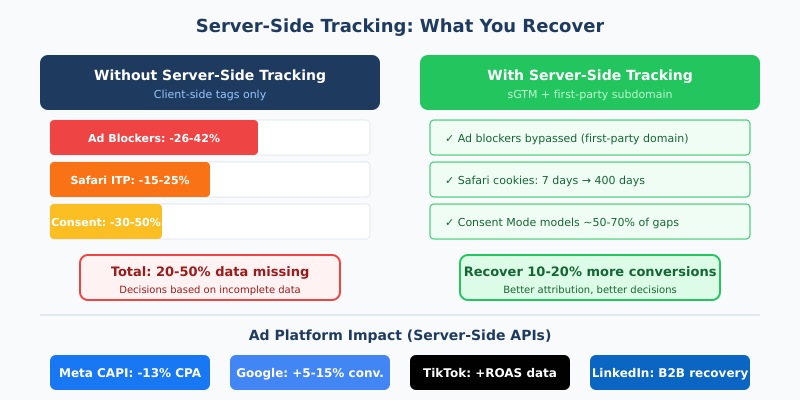
Every third-party JavaScript tag you load in the browser is a liability. Ad blockers strip it. Safari throttles the cookies it sets. GDPR consent banners gate it behind a click that 30-50% of visitors never give. The result: your analytics and ad platforms are missing 20-40% of real conversions, and you’re optimizing campaigns with incomplete data.
Server-side tracking solves this by moving data collection from the visitor’s browser to a server you control. One first-party request replaces a dozen third-party scripts. Ad blockers can’t distinguish it from normal site traffic. And the cookies it sets can last 400 days instead of Safari’s 7-day cap. Here’s how to set it up, what it costs, and where the pitfalls are.
What Is Server-Side Tracking?
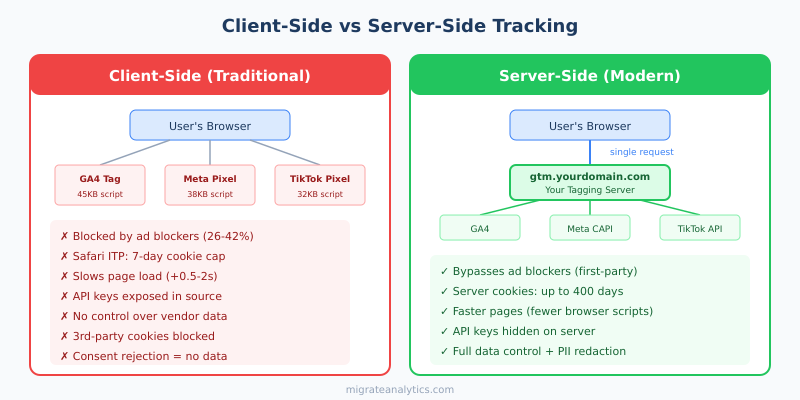
Server-side tracking is a data collection method where tracking events are processed on your own server instead of in the user’s browser. Rather than loading 10-30 JavaScript tags that each phone home to different vendors, the browser sends a single request to a first-party endpoint (like gtm.yourdomain.com). That server then forwards the data to Google Analytics, Meta, TikTok, and any other platform via server-to-server API calls.
The distinction matters because the browser is hostile territory for tracking. Ad blockers, cookie restrictions, and privacy browsers all target third-party scripts and cookies. A first-party server request looks identical to any other resource your site loads — which is exactly why it works.
Why Does Server-Side Tracking Matter Now?
Three forces are converging to make client-side tracking increasingly unreliable:
Ad blockers are everywhere. Approximately 26-42% of users run ad blockers, depending on your audience. Tech-savvy audiences (developers, SaaS users, B2B) skew higher. These tools block Google Analytics, Meta Pixel, and TikTok Pixel scripts entirely — not just ads.
Browser restrictions are tightening. Safari’s ITP caps JavaScript-set cookies at 7 days (24 hours for link-decorated traffic from ad platforms). A user who clicks your Google Ads campaign and converts 10 days later on Safari? That conversion is invisible to GA4 with client-side tracking. As we covered in our guide to cookieless tracking, these browser restrictions are only increasing.
Privacy regulations demand control. GDPR requires you to know exactly what data each vendor collects. With client-side tags, you’re trusting 10-30 third-party scripts not to overcollect. Server-side gives you a single chokepoint where you control every byte that leaves your infrastructure.

How Much Data Does Server-Side Tracking Recover?
The numbers are significant and well-documented across the industry:
| Metric | Improvement | Source |
|---|---|---|
| Total conversions tracked | 10-20% more | Industry case studies (Stape.io, consultancies) |
| Meta CAPI conversions | 15-20% more reported | Stape.io customer data |
| Meta cost per action | ~13% decrease | Meta’s published case studies |
| Google Ads conversions | 5-15% more attributed | Google Enhanced Conversions data |
| Safari returning users | 10-20% fewer “new” users | Server-set cookies bypass ITP |
| Page load time | 0.5-2 seconds faster | Removing 15-30 client-side tags |
| Consent Mode modeling | ~50-70% of non-consent gaps | Google’s machine learning estimates |
The page speed improvement alone is worth the effort. Each third-party JavaScript tag typically adds 50-200ms of blocking or render-delay time. Sites running 15-30 tags see cumulative Core Web Vitals degradation — worse LCP, higher Total Blocking Time, and lower Lighthouse scores. Moving these server-side removes the bottleneck.
How Does Server-Side GTM Work?
Google Tag Manager Server-Side (sGTM) is the most widely adopted server-side tracking solution. Here’s the architecture:
- Browser sends one request. The GA4 web tag (still runs in the browser) sends event data to your first-party subdomain:
gtm.yourdomain.com - Tagging server receives it. A Cloud Run container running sGTM parses the incoming request using a “client” module
- Server-side tags fire. Based on your configuration, the server forwards data to GA4 (Measurement Protocol), Meta (Conversions API), Google Ads (Enhanced Conversions), TikTok (Events API), etc.
- Server sets first-party cookies. The response sets HTTP-only cookies from your subdomain — treated as true first-party by Safari, lasting up to 400 days instead of 7
The GA4 web tag still needs to run in the browser — server-side doesn’t eliminate all client-side JavaScript. But it eliminates Meta Pixel, TikTok Pixel, LinkedIn Insight Tag, and every other vendor script. One lightweight tag replaces a dozen heavy ones.
What Does Server-Side Tracking Cost?
Cost depends on whether you self-host or use a managed service:
| Option | Monthly Cost | Setup Time | DevOps Required | Best For |
|---|---|---|---|---|
| sGTM on Google Cloud | $50-200+ | 4-8 hours | Yes (ongoing) | Teams with DevOps resources |
| Stape.io (managed) | $0-100+ | 30-60 minutes | No | Marketing teams, agencies |
| AWS self-hosted | $50-200+ | 6-10 hours | Yes | AWS-native teams |
Stape.io is worth highlighting: their free tier handles 10,000 requests/month (enough for testing), and the Pro plan starts at $20/month for 500,000 requests. They handle infrastructure, scaling, SSL, and subdomain setup — removing the DevOps barrier entirely.
For self-hosted sGTM on Google Cloud, plan for minimum 3 Cloud Run instances to avoid cold starts (each ~$7-15/month). Add networking egress and you’re looking at $50-150/month for moderate traffic.

How to Set Up Server-Side Tracking: Step by Step
Step 1: Create a Server-Side GTM Container
In Google Tag Manager, create a new server-side container. Choose automatic provisioning (Google Cloud) for the simplest path. Select Cloud Run, pick your region (choose one close to your audience), and note the container URL.
Step 2: Set Up Your Subdomain
This is the critical step. Your subdomain must be on the same registrable domain as your website for first-party cookie benefits.
- Choose a subdomain:
gtm.yourdomain.com,data.yourdomain.com, orss.yourdomain.com - Create a DNS CNAME or A record pointing to your Cloud Run service
- Map the custom domain in Cloud Run settings
- SSL is auto-provisioned by Google (or configure through your CDN)
Common mistake: Using the default Cloud Run URL (*.run.app) instead of a custom subdomain. This defeats the entire purpose — cookies won’t be first-party, and ad blockers can block known Cloud Run domains.
Step 3: Configure the GA4 Client
In your server-side GTM container, the GA4 client comes pre-configured. It listens for incoming GA4 requests and parses them. In your web GTM container, update your GA4 tag to set the transport_url to your subdomain. Test in Preview Mode — events should flow through your server.
Step 4: Add Server-Side Tags
Create tags for each platform you want to send data to:
| Platform | Server-Side Tag | What You Need |
|---|---|---|
| GA4 | GA4 tag (Measurement Protocol) | Measurement ID + API Secret |
| Meta | Conversions API tag (community template) | Pixel ID + Access Token |
| Google Ads | Enhanced Conversions tag | Conversion ID + Label |
| TikTok | Events API tag (community template) | Pixel ID + Access Token |
| Conversions API tag | Partner ID + Access Token |
Step 5: Run Parallel Tracking
Keep client-side tags running alongside server-side for 2-4 weeks minimum. Compare conversion counts in each ad platform. Server-side numbers should match or exceed client-side. Once confirmed, remove client-side vendor tags (Meta Pixel JS, TikTok Pixel JS, etc.) one by one.
Keep the GA4 web tag. It still needs to run in the browser to collect events and send them to your server endpoint. What you remove are the third-party vendor scripts.
Step 6: Set Up Event Deduplication
If you’re running both client-side pixel AND server-side API for the same platform (common during migration), you must configure event deduplication. Without it, Meta will count every conversion twice.
Use a shared event_id parameter: generate a unique ID in the data layer, include it in both the browser pixel event and the server-side API call. The ad platform matches them and counts only once.
How Do Server-Side Cookies Fix Safari’s ITP?
This is one of the most underappreciated benefits of server-side tracking. Safari’s ITP limits JavaScript-set cookies to 7 days. But cookies set via HTTP Set-Cookie headers from a first-party subdomain are treated as legitimate — they can persist for up to 400 days.
Practically, this means:
- Without server-side: A Safari visitor who returns after 8 days looks like a brand-new user. Your “new vs. returning” metrics, conversion funnel analysis, and attribution data are all wrong.
- With server-side: The same visitor is correctly identified as returning. New user rates drop by 10-20% — not because you’re getting fewer new users, but because you’re finally counting accurately.
Given that Safari accounts for 18-25% of global web traffic (and up to 50% on mobile in some markets), this fix alone can transform your analytics accuracy. If you track marketing KPIs like customer acquisition cost or return on ad spend, inflated “new user” counts are actively distorting your numbers.
What About Consent Mode v2?
Google’s Consent Mode v2 (required in the EEA since March 2024) adjusts tag behavior based on consent status. It has four signals: ad_storage, analytics_storage, ad_user_data, and ad_personalization.
How it works with server-side tracking:
- The consent state travels with each request to your server
- Server-side tags check consent before firing or including certain data
- When consent is denied, Google receives anonymized “cookieless pings” — signals that a page was viewed without identifying the user
- Google’s machine learning models the behavior of non-consenting users based on consenting user patterns
Important: Server-side tracking does not bypass consent requirements. You still need consent for analytics and advertising cookies. The benefit is twofold: better data quality for consenting users (server-side cookies, ad-blocker bypass) and modeled data to fill gaps for non-consenting users.
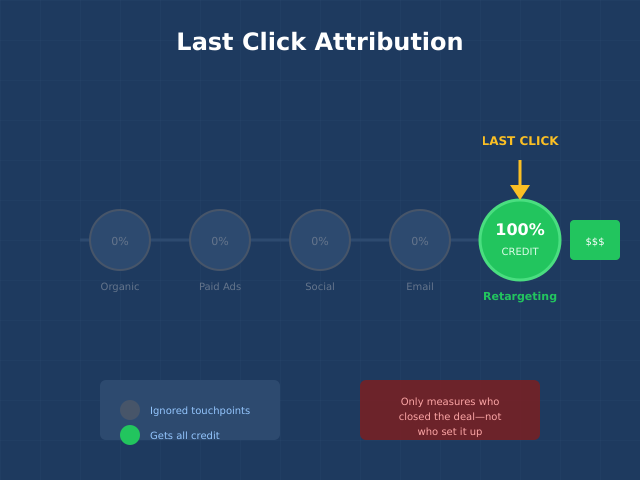
Don’t treat modeled conversions as ground truth. As we discussed in our analysis of last-click attribution, any model that fills in gaps introduces assumptions. Use modeled data directionally, and validate critical decisions with first-party data or incrementality tests.
How Does Server-Side Tracking Impact Ad Platforms?
Each major ad platform now offers a server-side API. The impact is measurable:

Meta Conversions API (CAPI): Meta recommends running CAPI alongside the browser pixel with deduplication. Advertisers using CAPI see an average 13% decrease in cost per action. The key metric is Event Match Quality (EMQ) — aim for a score above 6.0 out of 10. Server-side implementations typically achieve 7-9 because you can send more user parameters (hashed email, phone) that you wouldn’t want to expose in client-side JavaScript.
Google Ads Enhanced Conversions: Sends hashed first-party customer data alongside conversion tags for better matching. Google reports ~5% more recovered conversions from Enhanced Conversions alone. Combined with server-side ad-blocker bypass, total improvement can reach 10-20%.
TikTok Events API: Server-to-server event sending that bypasses browser restrictions. Particularly valuable for e-commerce where TikTok’s pixel is frequently blocked by ad blockers that specifically target social media tracking.
LinkedIn Conversions API: Arguably the platform that benefits most from server-side tracking. LinkedIn’s core audience (enterprise, tech, B2B professionals) are the most likely to use ad blockers. Without CAPI, LinkedIn attribution data for these audiences is severely underreported.
Common Mistakes When Implementing Server-Side Tracking
Mistake 1: Skipping the Subdomain Setup
Using the default Cloud Run URL (*.run.app) or a third-party Stape domain instead of your own subdomain. This defeats the core benefit — cookies won’t be first-party, ad blockers can still identify and block the known domains, and Safari ITP restrictions apply.
Fix: Always set up a custom subdomain on your registrable domain. The 30 minutes of DNS configuration is non-negotiable.
Mistake 2: Removing Client-Side Tags Too Early
Cutting over without parallel testing leads to data gaps. Stakeholders see numbers change and lose trust in the data — even if the server-side numbers are more accurate.
Fix: Run dual tracking for 2-4 weeks. Document the differences. Present the comparison to stakeholders before switching. This is the same approach we recommend in our analytics migration guide.
Mistake 3: Forgetting Event Deduplication
Running both client-side pixel AND server-side API without deduplication means every conversion is counted twice. Your Meta Ads dashboard shows double the conversions, and the algorithm optimizes against inflated data.
Fix: Generate a unique event_id in the data layer. Include it in both the browser pixel event and the server-side API call. All major platforms support deduplication via event ID.
Mistake 4: Running Only One Server Instance
A single Cloud Run instance means cold starts — the container spins up from scratch, adding 2-5 seconds of latency. During that time, tracking requests can be lost.
Fix: Set minimum instances to 3 in Cloud Run. The extra $15-30/month is trivial compared to the cost of lost conversion data.
Mistake 5: Not Monitoring Server Health
Your tagging server is now critical infrastructure. If it goes down, all tracking stops — not just for one platform, but for every platform routed through it. Yet many implementations skip monitoring entirely.
Fix: Set up uptime monitoring (Pingdom, UptimeRobot, or Google Cloud Monitoring). Configure alerts for errors, latency spikes, and downtime. Set auto-restart policies.
Who Should (and Shouldn’t) Use Server-Side Tracking?
| Profile | Recommendation | Why |
|---|---|---|
| E-commerce running paid ads | Essential | Conversion data directly impacts ROAS optimization; 10-20% more conversions = better algorithm training |
| B2B SaaS with long sales cycles | Highly recommended | Safari ITP breaks 30-day attribution windows; server cookies fix this |
| Content sites with ad revenue | Nice to have | Benefits from page speed improvement; limited conversion tracking need |
| Small blogs / personal sites | Probably not worth it | Complexity and cost outweigh benefits; use privacy-first analytics instead |
| Agencies managing multiple clients | Essential | Stape.io or similar makes it scalable; competitive advantage in data quality |
The key question is whether you run paid advertising campaigns where conversion tracking matters. If yes, server-side tracking isn’t optional anymore — it’s the difference between optimizing on 60-80% of your data versus 90-95%.
Continue Learning
Server-side tracking connects to several related topics across analytics and marketing measurement:
- Cookieless Tracking: How to Measure Traffic Without Cookies — the broader cookieless landscape, including privacy-first analytics alternatives
- Last Click Attribution: Why It’s Misleading — how attribution models need to evolve when tracking data changes
- Conversion Funnel Analysis — measure drop-offs accurately with complete server-side data
- Mistakes and Pitfalls When Switching Analytics Platforms — avoid common migration errors that apply to server-side transitions too
- Digital Marketing Trends 2026 — the industry shifts making server-side tracking essential
Bottom Line
Server-side tracking is no longer an advanced optimization — it’s becoming table stakes for any business that relies on accurate analytics and ad platform data. The combination of ad blocker growth (26-42% of users), Safari ITP (7-day cookie caps affecting 18-25% of traffic), and Consent Mode requirements has made client-side-only tracking fundamentally incomplete.
The implementation path is straightforward: set up a server-side GTM container, configure a first-party subdomain, add server-side tags for your ad platforms, and run parallel tracking for 2-4 weeks before cutting over. Use a managed service like Stape.io if you don’t have DevOps resources.
The ROI case practically makes itself: 10-20% more conversions tracked, 13% lower Meta CPA, 0.5-2 seconds faster page loads, and server-set cookies that last 400 days instead of 7. Start with parallel tracking alongside your existing setup, measure the delta, and let the data speak for itself.